A compatible television or device
Use an Android TV, Google TV, certified television, streaming device or compatible Android TV box with Google Play access.
IPTV for Android TV gives compatible televisions, Google TV devices and Android TV boxes a television-friendly way to open an IPTV player using a remote control. This guide explains how to install a player, enter Xtream Codes credentials, choose between recommended apps, connect popular Android phones and resolve common setup problems.
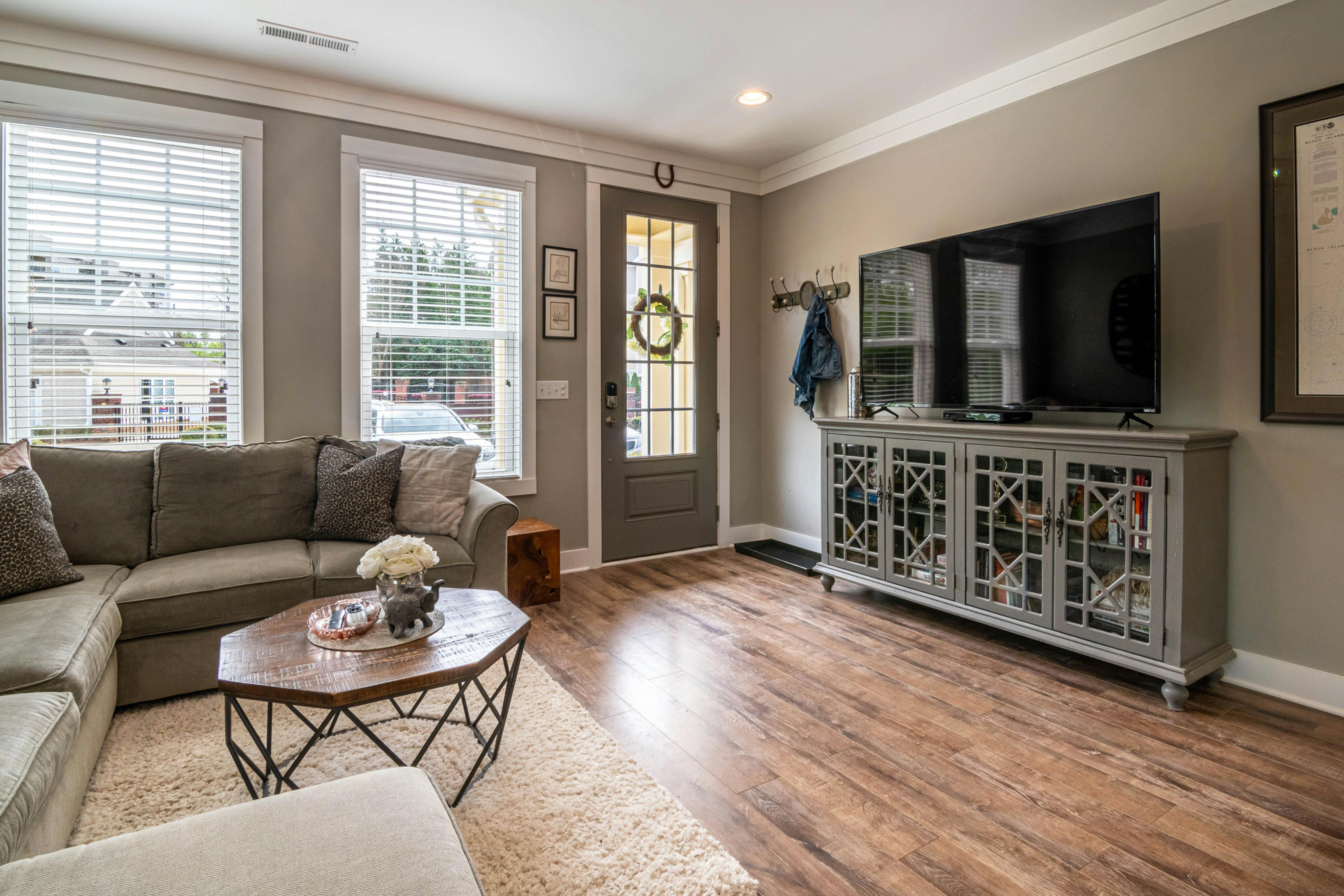
Use credentials supplied with your IPTVV.com account in a compatible third-party player.
Check supported devicesAndroid TV and Google TV devices use television-focused apps that can be controlled with a remote. The IPTVV.com account supplies login information, while the player application provides the interface used on the screen.
Use an Android TV, Google TV, certified television, streaming device or compatible Android TV box with Google Play access.
Install an app that accepts the account login method supplied by IPTVV.com, such as Xtream Codes credentials.
Connect the television through Wi-Fi or Ethernet and test the connection in the room where the television will be used.
Keep the server address, username and password exactly as supplied. Do not add spaces or share the credentials publicly.
Complete setup with the television remote or pair the Google TV mobile app as a virtual remote on the same Wi-Fi network.
Choose a plan that includes the number of screens expected to be active at the same time.
Open each collapsible box to compare the interface, device support and installation considerations. App availability can vary by television model, Google Play region and operating-system version.
XCIPTV is a practical starting option because its Google Play listing supports Android TV, Android phones and Android tablets. Its television interface separates Live TV, VOD and Series into remote-friendly sections.
OTR Player is another option for households that prefer a different menu layout. Its developer information lists Android TV, Android phones and Android tablets among the supported platforms.
HotPlayer is a separate media-player application that can be available through Google Play and selected television app stores. It does not supply channels or an IPTV subscription.
Smarters Pro is another media-player option for compatible Android devices. It can be useful for customers already familiar with a Smarters-style menu and login screen.
Follow the collapsible steps in order. Menu names may differ slightly between Android TV, Google TV and individual television manufacturers.
When an app does not appear, it may not be offered for that television model, operating-system version or store region. Try another compatible player instead of downloading from an unknown website.
Most IPTVV.com account setups use separate fields for a server address, username and password. In the player, look for a menu labelled one of the following:
Do not select an M3U playlist field unless your account email specifically includes an M3U URL.
The server address may begin with http:// or https://. Do not remove that part unless instructed.
Keep the app open while it retrieves the account categories and programme information. Avoid pressing Back repeatedly during the initial load.
Installing the application on multiple devices does not automatically increase the number of simultaneous connections. Each screen used at the same time must be covered by the selected plan.
Compatibility depends on the specific model, operating-system version, available storage and whether the required player appears in Google Play.
Many televisions from brands such as Sony, TCL, Hisense and Philips use Google TV interfaces with access to compatible apps.
Android TV models from Sony, TCL, Philips, Sharp, Xiaomi, Skyworth and other manufacturers can support television apps.
Certified Android TV boxes can add Google Play applications and remote navigation to a television with an available HDMI port.
Google’s current streaming device connects through HDMI and provides the Google TV application environment.
Existing Chromecast with Google TV devices can run compatible television applications and receive supported Cast sessions.
Shield TV devices use Android TV and can run compatible television applications available for their software version.
Compatible Xiaomi television and TV Box models may use Android TV or Google TV depending on the model and market.
Open Settings, About or Device Preferences and look for Android TV, Google TV, Android version or Google Play Store.
Android phones do not run the television version of Android TV, but a compatible phone can run a mobile IPTV player, help configure the television, act as a remote or cast from supported apps.
Recent phones with active Google Play support, current software and sufficient storage are generally easier to configure than older devices.
Open each manufacturer box for popular current and recent phone families. Exact app support can vary by model, Android version, country and Google Play availability.
Popular examples include the Galaxy S26, S25 and S24 families, Galaxy A-series phones and recent Galaxy Z Fold or Z Flip models.
Google Pixel phones integrate closely with Google accounts, Google TV, Google Home and Cast-enabled devices.
OnePlus flagship, R-series and Nord devices use Android with Google Play in supported markets.
Motorola offers flagship, mid-range, budget and folding Android phones, including Edge, Moto G and Razr devices.
Xiaomi, Redmi and POCO offer Android phones across several performance and price levels. Google Play availability depends on the regional version of the device.
Other Android phones can also work when they include Google Play, support the required application and have a stable network connection.
Check the phone’s Android version, available storage, Google Play certification and app-store region before assuming a specific player will be available.
These features are separate from the IPTV account itself and depend on the phone, television, receiving device and selected application.
Not every IPTV player includes Google Cast support. Installing the player directly on Android TV usually provides a more television-friendly remote interface.
Install a compatible Android mobile player and enter the credentials on the phone. When the account loads correctly, enter the same information into a compatible player on Android TV.
This can help identify whether an error comes from the account details, television keyboard, player application or home network.
Open the problem that most closely matches what appears on the screen.
These Google resources provide independent instructions for the Android TV platform and related phone features.
Review remote pairing, Wi-Fi connection, Google-account sign-in and phone-assisted setup.
Open Google Setup HelpReview Google Play installation, updates, app management and uninstall instructions.
Open App InstructionsPair the Google TV app with an Android TV device connected to the same Wi-Fi network.
Open Remote InstructionsReview Wi-Fi checks, software updates, restart instructions and app-data troubleshooting.
Open Troubleshooting HelpRequest trial access for a compatible television, streaming device, phone, tablet or computer.
Request trial accessReview the Fire TV installation process, player setup and credential entry.
Open Fire TV guideReview setup considerations for Samsung, LG and other Smart TV operating systems.
Open Smart TV guideConfigure a compatible desktop player and troubleshoot common computer connection issues.
Open computer guideIPTV for Android TV uses a compatible television application to open provider-supplied account information on an Android TV, Google TV or compatible Android TV box.
XCIPTV is the recommended starting option. OTR Player, HotPlayer and Smarters Pro are alternatives when customers prefer another interface or the first app is unavailable.
No. A player is only the application interface. The player and IPTVV.com account are separate products.
Select Xtream Codes, Login with Xtream Codes or the equivalent username-and-password option when the account provides a server address, username and password.
Compatible IPTV players can be installed on supported Google TV televisions and streaming devices when the application appears in Google Play for that model and region.
Yes. A compatible Android mobile player can be installed on supported phones, including Samsung Galaxy, Google Pixel, OnePlus, Motorola, Xiaomi, Redmi, POCO and other Google Play devices.
The Google TV app can act as a virtual remote when the phone and television are connected to the same Wi-Fi network and pairing is supported.
Casting is possible when the selected mobile player includes compatible Google Cast support. Direct installation on Android TV usually provides a more remote-friendly interface.
Not usually. Samsung televisions commonly use Tizen and LG televisions commonly use webOS. Review the IPTV for Smart TV guide for those systems.
The player can be installed on several compatible devices, but simultaneous use must stay within the active-connection allowance included with the selected plan.
Availability can depend on the television model, Android TV or Google TV version, manufacturer, Google Play region and application developer.
Re-enter the server address, username and password exactly as supplied. Check capitalization, punctuation, spaces and the http:// or https:// portion of the server address.
Ethernet can provide a more consistent local connection when both the router and television device support it. Wi-Fi can also work when the signal is stable at the television location.
Yes. A third-party player developer may charge an activation, premium or lifetime-access fee. That charge is separate from the IPTVV.com subscription.
Submit the form below with the television brand, model, operating system, selected player and exact error message.
Provide the television or streaming-device details so the request can be reviewed against the appropriate installation method.