A compatible Smart TV
Confirm the television brand, model number, manufacture year and operating system before choosing an application.
IPTV for Smart TV allows a compatible television to open an IPTV player without requiring a computer. This guide explains how to identify your television operating system, find a compatible app, enter Xtream Codes or playlist information, configure Samsung and LG televisions, set up Android TV, Google TV, Roku TV and Fire TV, and solve common installation problems.
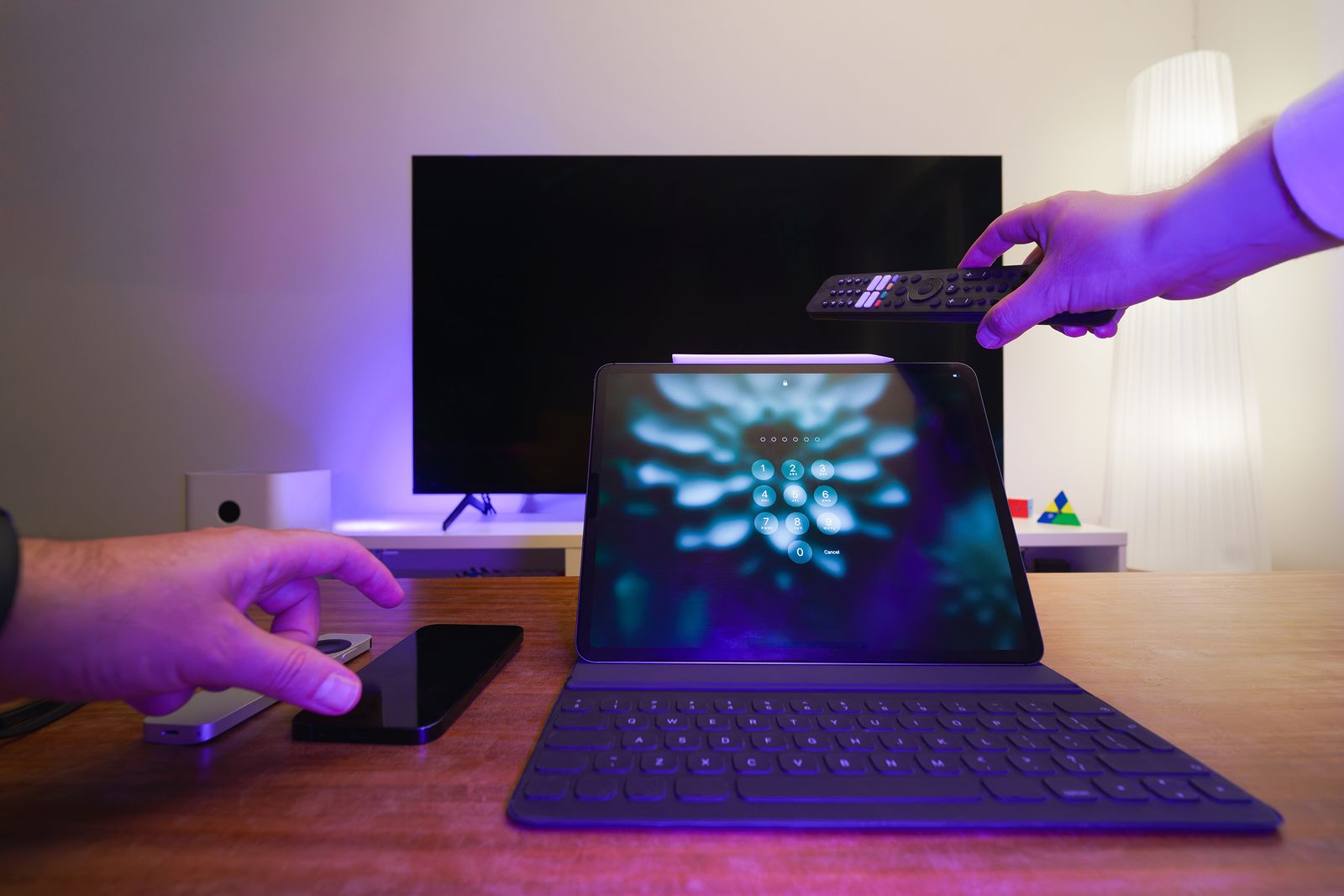
Samsung, LG, Android TV, Roku TV and Fire TV do not all use the same applications or installation method.
Review supported devicesThe television supplies the screen and app environment. The third-party player supplies the interface, while the IPTVV.com account supplies the login information used inside that player.
Confirm the television brand, model number, manufacture year and operating system before choosing an application.
Samsung Tizen, LG webOS, Android TV, Google TV, Roku OS and Fire TV use different app stores and player versions.
Search the official television app store for a player that supports the login method supplied with the account.
Connect the television through Wi-Fi or Ethernet and test the connection where the television is installed.
Keep the complete server address, username and password exactly as supplied and do not share them publicly.
A compatible Android TV, Google TV or Fire TV device can be connected through HDMI when the built-in TV store has no suitable player.
Open the corresponding collapsible box before following any app installation instructions.
Samsung Smart TVs generally use the Tizen television operating system. Tizen applications must come from the Samsung TV app store and are not normal Android APK applications.
LG Smart TVs generally use webOS. Compatible applications must be installed through the LG television Apps area or LG Content Store for the selected region and model.
Android TV and Google TV televisions use applications developed for the Android television platform. Compatible players can be installed through Google Play.
Review the dedicated IPTV for Android TV guide for expanded installation instructions.
Roku TVs use Roku OS. Only applications offered through Roku’s Streaming Store can be installed through the normal customer interface.
A television with Fire TV built in uses Amazon’s television environment. Begin with the Amazon Appstore and verify whether the model uses Fire OS or Vega OS.
Review the dedicated IPTV for Fire TV guide before attempting Appstore or Downloader installation.
Some television platforms provide a limited set of approved applications and do not support installing Android television apps.
When no suitable player appears in the built-in television store, connect a compatible Android TV, Google TV or Fire TV device through HDMI rather than downloading an unsupported file.
Search only the official television app store. Availability can vary by television model, software version, store country and developer support.
HotPlayer’s official website lists versions for Samsung, LG, Roku and Google Play. It is a media player only and does not include an IPTVV.com account or channels.
XCIPTV is designed for Android TV, Android phones and Android tablets. It should not be treated as a Samsung Tizen or LG webOS application.
OTR Player supports compatible Android TV and Fire TV devices. Do not use unrelated Samsung or LG applications that imitate the XCIPTV or OTTRUN identity.
Smarters-style players can provide a familiar login screen and television layout on compatible Android TV and Google TV devices. Store listings can include similarly named apps.
Follow these steps in order after identifying the television operating system and compatible player.
Use the login method that matches the account information:
The first login can take longer while the player retrieves account categories and programme information.
The operating system can vary by model, production year and country, even within the same television brand.
Includes many QLED, Neo QLED, OLED, The Frame and Crystal UHD televisions using Samsung’s television platform.
Includes many OLED, QNED, NanoCell and UHD televisions using LG’s webOS television system.
Many recent models use Google TV or Android TV, although the exact software depends on the model and year.
TCL televisions can use Google TV, Android TV, Roku TV or Fire TV depending on the model and market.
Hisense models can use Google TV, Android TV, Roku TV, Fire TV or another system depending on the country and model.
Some models use Google TV or Android TV, while others use different manufacturer platforms.
Roku televisions use Roku OS and install supported applications through Roku’s Streaming Store.
These televisions include Amazon’s Fire TV environment directly in the television hardware.
Older Smart TVs and television platforms with limited app stores may not provide a compatible IPTV player. An external streaming device can provide a newer application environment without replacing the television.
Remote-control, casting and screen-sharing features depend on the television, phone and player application.
A compatible Android phone can be used to test account details, control certain television platforms or cast from an application that supports the television’s receiving method.
Compatible iPhones and iPads can use official television remote apps and supported screen-sharing features. Availability depends on the television and selected mobile player.
Testing the supplied information in a compatible mobile player can help determine whether a problem comes from credential entry, the television player, the remote keyboard or the home network.
The phone player and television player may use different menu layouts even when both accept the same account information.
Open the collapsible problem that most closely matches what appears on the television.
Standard Android APK files are not normal Samsung Tizen or LG webOS applications. Use the television’s official app store or connect a compatible external Android TV or Fire TV device.
Use the television manufacturer’s documentation when menu names differ from this general Smart TV guide.
Review Samsung’s instructions for searching, installing, managing and removing television applications.
Open Samsung InstructionsReview LG’s instructions for finding and installing compatible applications on webOS televisions.
Open LG InstructionsReview Google’s instructions for searching for and installing applications on Google TV.
Open Google TV InstructionsReview Roku’s instructions for finding and adding applications through the Streaming Store.
Open Roku InstructionsRequest trial access for a compatible Smart TV, streaming device, phone, tablet or computer.
Request trial accessInstall XCIPTV or another compatible Android television player and enter the supplied account information.
Open Android TV guideReview Appstore, Fire OS, Vega OS and compatible Fire TV installation instructions.
Open Fire TV guideConfigure a compatible computer player and troubleshoot desktop login or connection problems.
Open computer guideIPTV for Smart TV uses a compatible television player to open account information on an internet-connected television.
HotPlayer is a practical starting option for supported Samsung, LG and Roku TVs. XCIPTV is recommended for compatible Android TV and Google TV models.
No. Samsung Tizen, LG webOS, Android TV, Google TV, Roku TV and Fire TV require applications developed for their respective platforms.
A normal Android APK is not a Samsung Tizen television application. Use the Samsung TV app store or connect a compatible Android TV or Fire TV device through HDMI.
A normal Android APK is not an LG webOS television application. Use the LG television app store or an external streaming device.
No. The player supplies the application interface. The third-party player and IPTVV.com account are separate.
Select Xtream Codes when you received a server address, username and password. Select M3U only when a complete M3U URL was supplied.
A compatible Samsung television player can be installed when it appears in the Samsung TV app store for the selected model and region.
A compatible webOS player can be installed when it appears in the LG television app store for the selected model and region.
Yes, when a compatible television player appears in Google Play. Review the Android TV setup guide .
A supported player can be added when an official compatible listing appears in Roku’s Streaming Store.
A compatible player can be installed through the Fire TV environment. Review the Fire TV setup guide before proceeding.
Connect a compatible Android TV, Google TV or Fire TV device to an available HDMI port and install the player on that device.
Yes. A third-party player may charge an activation, premium or lifetime-access fee. That charge is separate from IPTVV.com.
Players can be installed on compatible devices, but simultaneous use must stay within the active-connection allowance included with the selected plan.
Re-enter the server address, username and password exactly as supplied. Remove spaces and retain the http:// or https:// part of the server address.
Ethernet can provide a more consistent local connection when the television and router support it. Stable Wi-Fi can also work.
Submit the form below with the television brand, model, operating system, selected player and exact error message.
Provide the television brand, model, operating system and player details so the compatibility request can be reviewed.